Introduction
- For any office job, managing emails and tasks efficiently is key to staying productive. Outlook offers powerful tools to help streamline workflows. Among these are Quick Steps and Quick Parts, often overlooked but incredibly useful features. In this blog post, we’ll explore how leveraging Quick Steps and Quick Parts can significantly improve your Outlook experience.
Section 1: Getting Started with Quick Steps
What are Quick Steps?
- Quick Steps are a feature in Microsoft Outlook designed to automate common tasks and actions, making email management more efficient. Essentially, Quick Steps are like customizable macros that allow you to perform multiple actions on an email with just a single click.
Setting Up Quick Steps
Create a new quick step from the Home Ribbon in Outlook
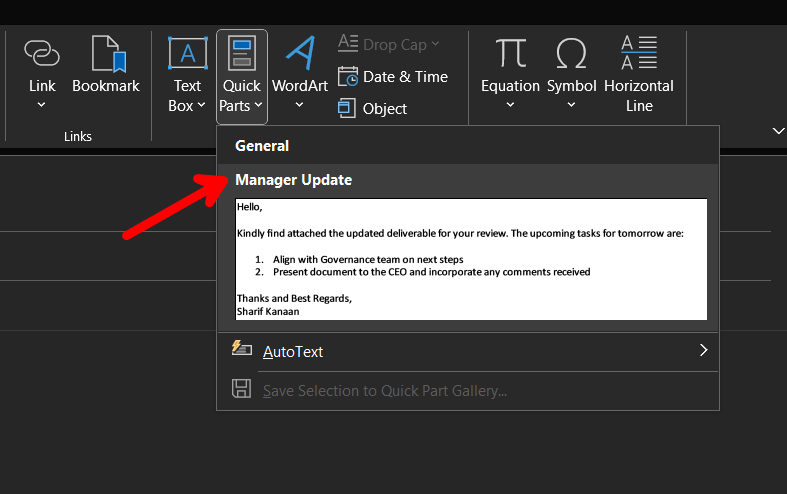
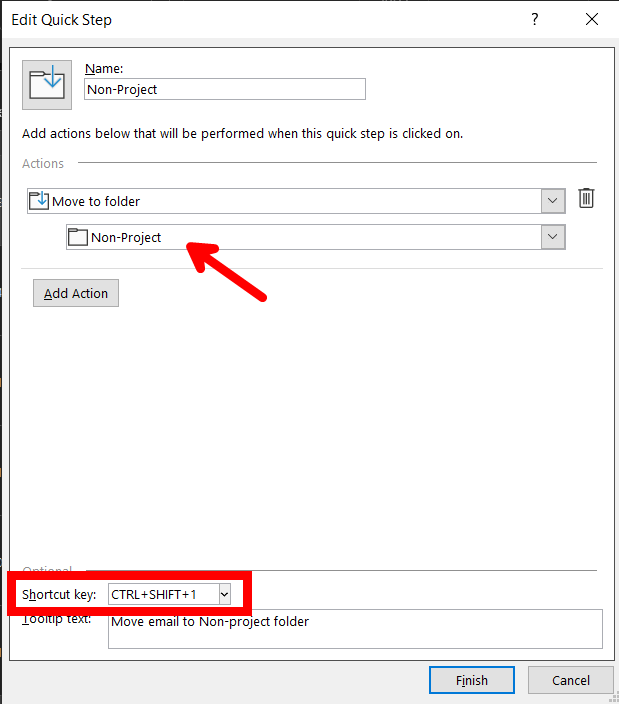
In the pop-up dialogue box, you can customize the following: Name: Change the name of the quick step for easy reference Action: Customize the actions taken and in what order; some actions include: 1. Moving to a folder 2. Changing importance of an email 3. Archiving an email
Shortcut Key: You can set a custom shortcut key for frequently used quick steps for easy access from the keyboard
Once done with configuration, you can click the Finish button and the quick step will be created
Examples of Quick Steps
Example 1: Email to Project Team
If you have a fixed project team for a long time, you can create a quick step to quickly send and CC the correct people, and include a sample text body and subject accordingly
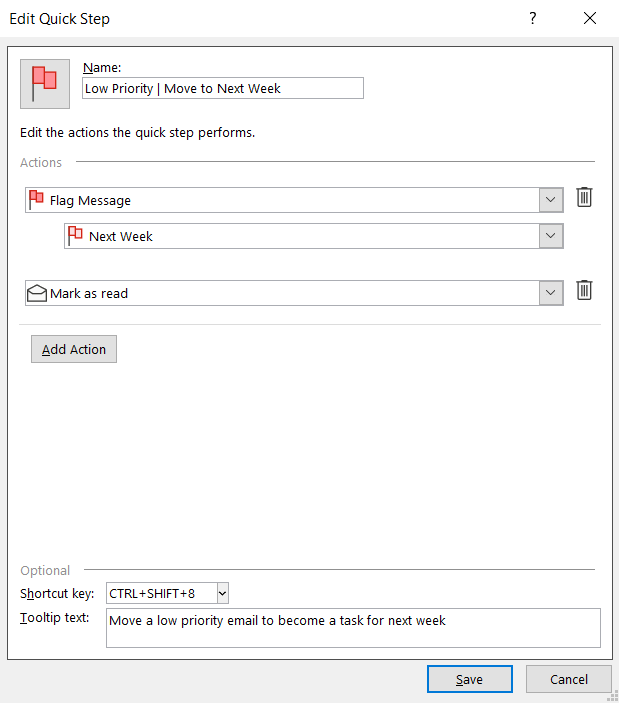
Example 2: Convert Low Priority Emails to Next Week’s Tasks
If you have a series of emails that are considered low priority, and would like to convert it to a task due next week
Section 2: Leveraging Quick Parts for Templates
Understanding Quick Parts
- Quick Parts are a feature in Microsoft Outlook that simplifies email composition by allowing users to save and reuse frequently used text or content snippets. Think of Quick Parts as customizable templates or building blocks that you can insert into your emails with ease.
Setting Up Quick Parts
- Compose a new message on Outlook and write the text you would like to be saved as a new snippet building block.
- Now go to the “Insert” ribbon and select “Quick Parts” then “Save Selection to Quick Part Gallery”
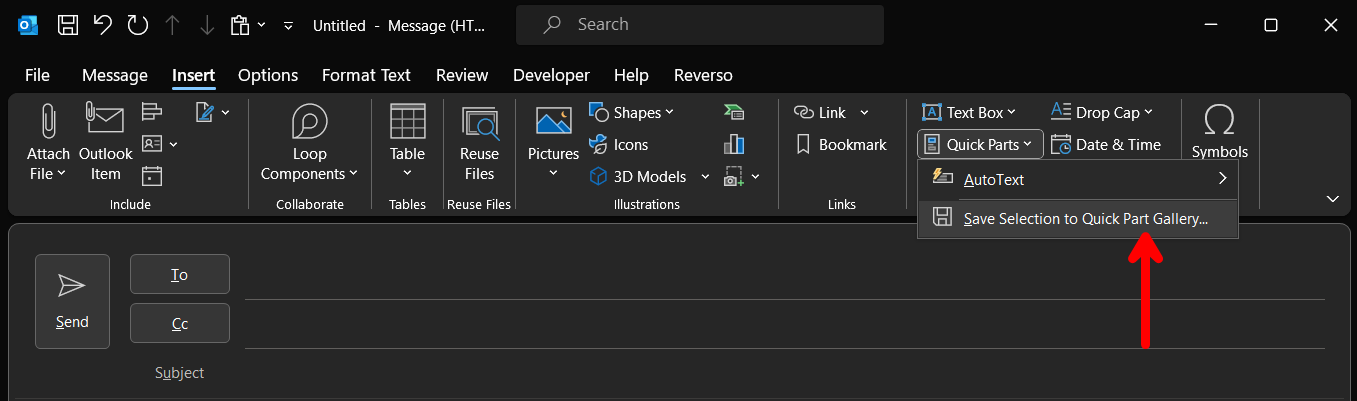
- A dialogue box should pop up to create the new building block, where you can name it and add a brief description
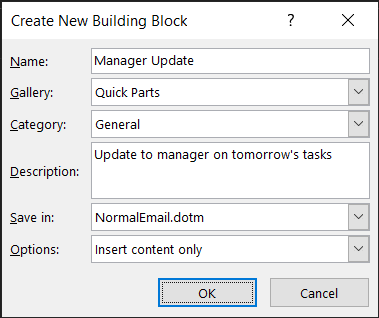
- Now, the quick part has been created. You can insert it at any point within the same menu whenever you are composing a new email